
Free Pinterest Pin Title & Description Generator
Already have pin images? Generate optimized Pinterest metadata—titles, descriptions, and hashtags—without redesigning every graphic.
This tool writes copy for pin images you already have. It does not create pins. If you want a finished pin from a tagged product link, use the affiliate pin tool instead. Design in Canva (or export from URL2Pin), then come back here for fast, SEO-friendly copy for each pin before scheduling.
- AI pin titles tuned for Pinterest search
- Descriptions with keywords + disclosure room
- Hashtag suggestions per pin
- Bulk upload—metadata for many pins at once
Upload your PNGs, generate metadata, then schedule or export. Need full pins from a blog URL? Use URL2Pin for AI images + copy in one step. Pair your metadata with the Pinterest hashtag generator, or make the pins themselves with the Pinterest pin maker.
Not sure what makes a title work? We measured 4,161 published pins: those starting with a number were saved 2.3× as often, and 55–69 characters outperformed shorter titles. See the full study.
Upload pins & generate metadata
Add PNG or JPG pin images, then generate Pinterest titles, descriptions, and hashtags in bulk. Sign in to save images and schedule to Pinterest.
Your Own Pins (Upload & Metadata)
Upload your own finished pin images here, then use AI to generate or refine the pin title, description, and link (metadata) before scheduling or exporting.
Ready to create the pins?
Paste any product or blog URL and URL2Pin turns it into multiple ready-to-publish Pinterest pins, with images, titles, descriptions, and hashtags included.
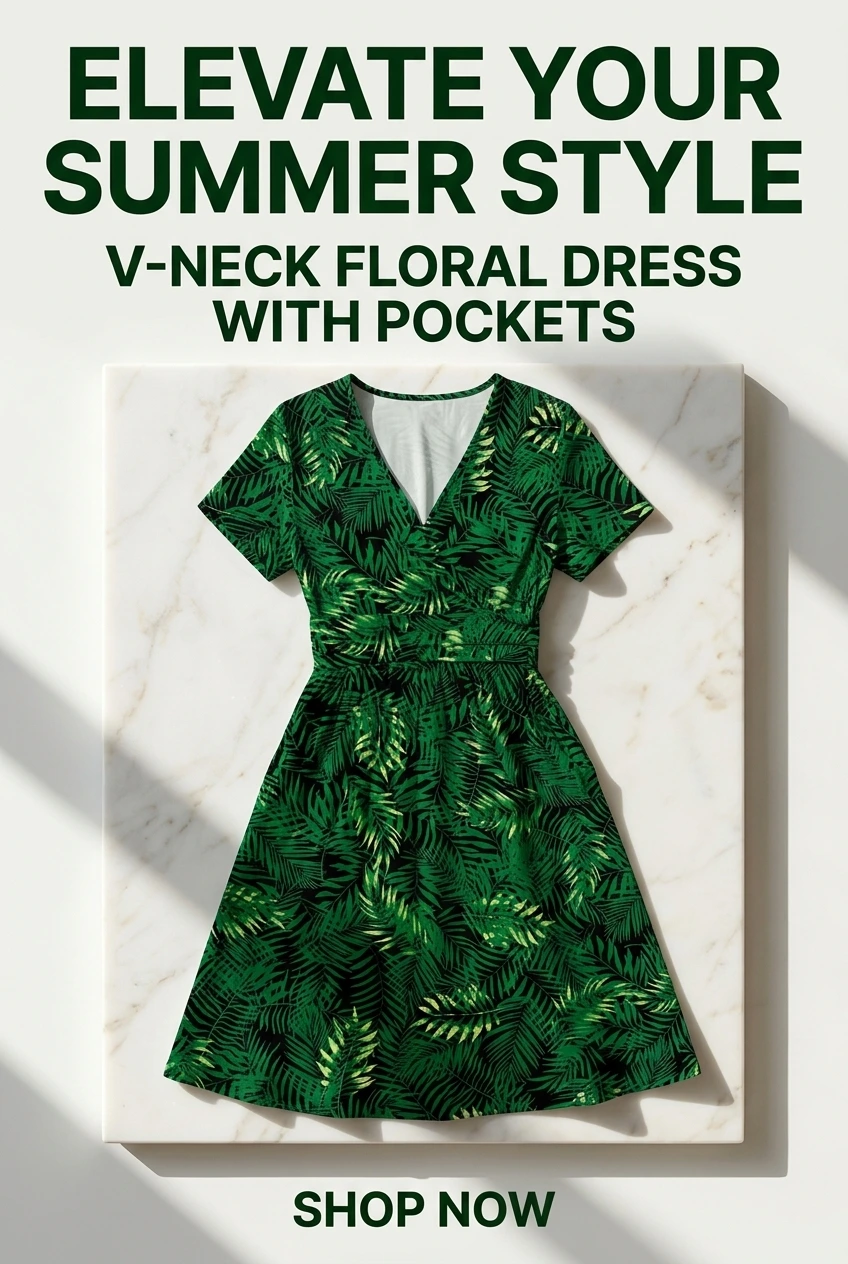
Pins generated in URL2Pin from one product URL



What is a Pinterest pin metadata generator?
A Pinterest pin metadata generator writes the text Pinterest needs to rank and distribute your pin: title, description, destination link, and optional hashtags. The image gets attention; metadata earns the click.
Most affiliates already have pin graphics—from Canva, a designer, or exports from URL2Pin. The slow part is writing unique titles and descriptions for every PNG, especially when you publish 5–10 angles per URL.
This free tool lets you upload finished pin images and generate metadata in bulk. Use it when creative is done but copy is the bottleneck—common for Amazon review roundups and blog republishing workflows.
Why pin titles and descriptions matter for affiliates
Pinterest behaves like a visual search engine. Users scan headlines before they read body copy. A pin title that matches how people search—“quiet blender for apartments,” “gift ideas under $50”—outperforms generic “Shop now” text.
- Title — primary keyword + clear benefit (60–100 characters readable on mobile)
- Description — expand the promise, add secondary keywords, room for #affiliate disclosure
- Link — bridge page or review URL you control (not a naked product grid)
- Hashtags — small, relevant set; search-first beats viral tags
Weak metadata is why pretty pins get impressions but no outbound clicks. Track saves and clicks in Pinterest analytics for Amazon affiliates and rewrite headlines that stall.
How to use this metadata generator
Step 1: Upload your pin images
Add PNG or JPG files—one file per pin angle. If you use Canva, export at Pinterest’s recommended 1000×1500 aspect ratio for sharpest previews.
Step 2: Add destination links
Paste the blog post, review, or bridge page URL for each pin. For Amazon affiliates, confirm your Associates tag is on the landing page—not only in the pin link field.
Step 3: Generate titles & descriptions
Run AI generation per pin or in bulk. Edit anything that overpromises; honesty protects saves and account trust.
Step 4: Schedule or export
Schedule selected pins to boards inside URL2Pin (paid plans) or export for your workflow. Space publishes per Pinterest scheduling tips for affiliates.
Metadata generator vs full URL-to-pins workflow
Use this metadata tool when you already have pin art and only need copy. Use URL2Pin when you start from a URL and want multiple pin angles with AI visuals, titles, and scheduling together.
Many Amazon affiliates use both: Canva or URL2Pin for creative, this page for refreshing metadata on seasonal winners, or bulk-updating descriptions after a keyword research pass from the Pinterest keyword tool.
Compare design stacks: URL2Pin vs Canva and scheduling options in URL2Pin vs Buffer.
Next steps
- Upload 3–5 pin PNGs you already use
- Generate titles + descriptions; tweak top keywords in
- Schedule 2–3 pins this week to test outbound clicks
- Scale with multiple pins per post once a winner appears
Related free tools
Use these together, then turn your best URLs into pins with URL2Pin. Full strategy: Amazon affiliate Pinterest guide.
- Pinterest pin generator
Paste any URL → get a finished pin with the copy written for that page.
- Pinterest affiliate pin generator
Paste a tagged product link → get a pin that keeps your affiliate tag.
- Pinterest hashtag generator
Suggested hashtags plus an avoid list for spammy tags.
Next step: generate pins
Paste a blog or Amazon product URL into URL2Pin and get multiple unique pin images, titles, descriptions, and hashtags in one batch.
Generate pins in URL2Pin →FAQ
What is Pinterest pin metadata?
Metadata is the title, description, link, and hashtags Pinterest uses for search and distribution. Strong metadata often beats a prettier image with weak copy.
Can I use this if I design pins in Canva?
Yes. Export PNGs from Canva, upload here, and generate titles and descriptions in bulk—then schedule or download with metadata attached.
How is this different from URL2Pin?
This tool adds metadata to images you already have. URL2Pin creates new pin images and copy from a blog or product URL. Try the URL → Pins generator.
Where should I put keywords?
Lead with the primary keyword in the pin title and first line of the description. If the pin promotes a tagged product link, generate the pin and its copy together instead of adding metadata afterwards. Try the affiliate pin generator.